Running Reports
Learn how to create a report, add your questions, publish it, and let Seraa search your document library and return structured answers.
Running Reports
A Report is how you ask Seraa to investigate a question across your document library. You describe what you're looking for, add the specific questions you want answered, and Seraa finds the most relevant documents and works through each one to give you a structured set of results.
The Reports Dashboard
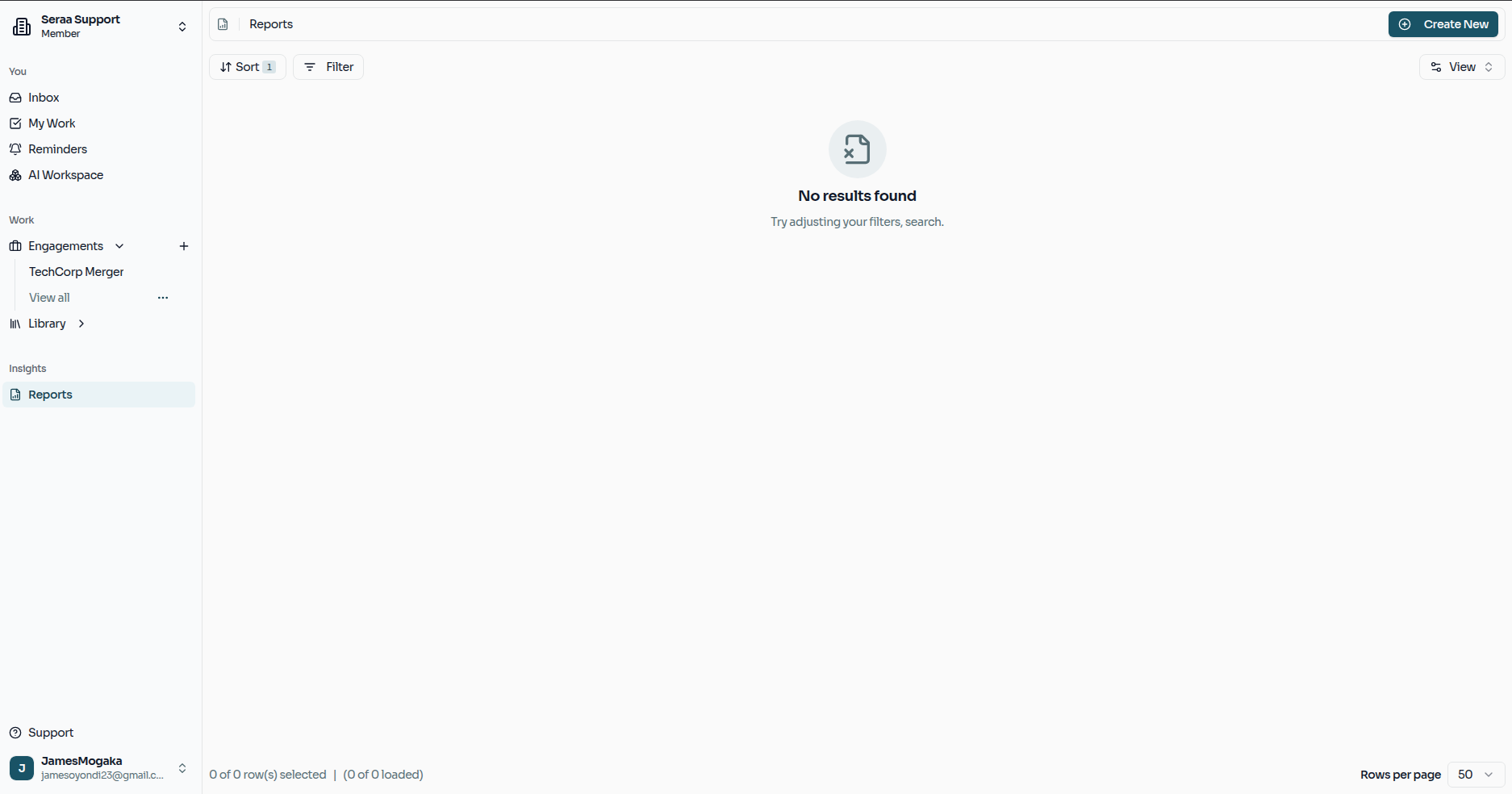
The Reports dashboard shows every report your firm has created. From here you can open any previous report to revisit its results, or start a brand new one.
Step 1 — Creating a Report
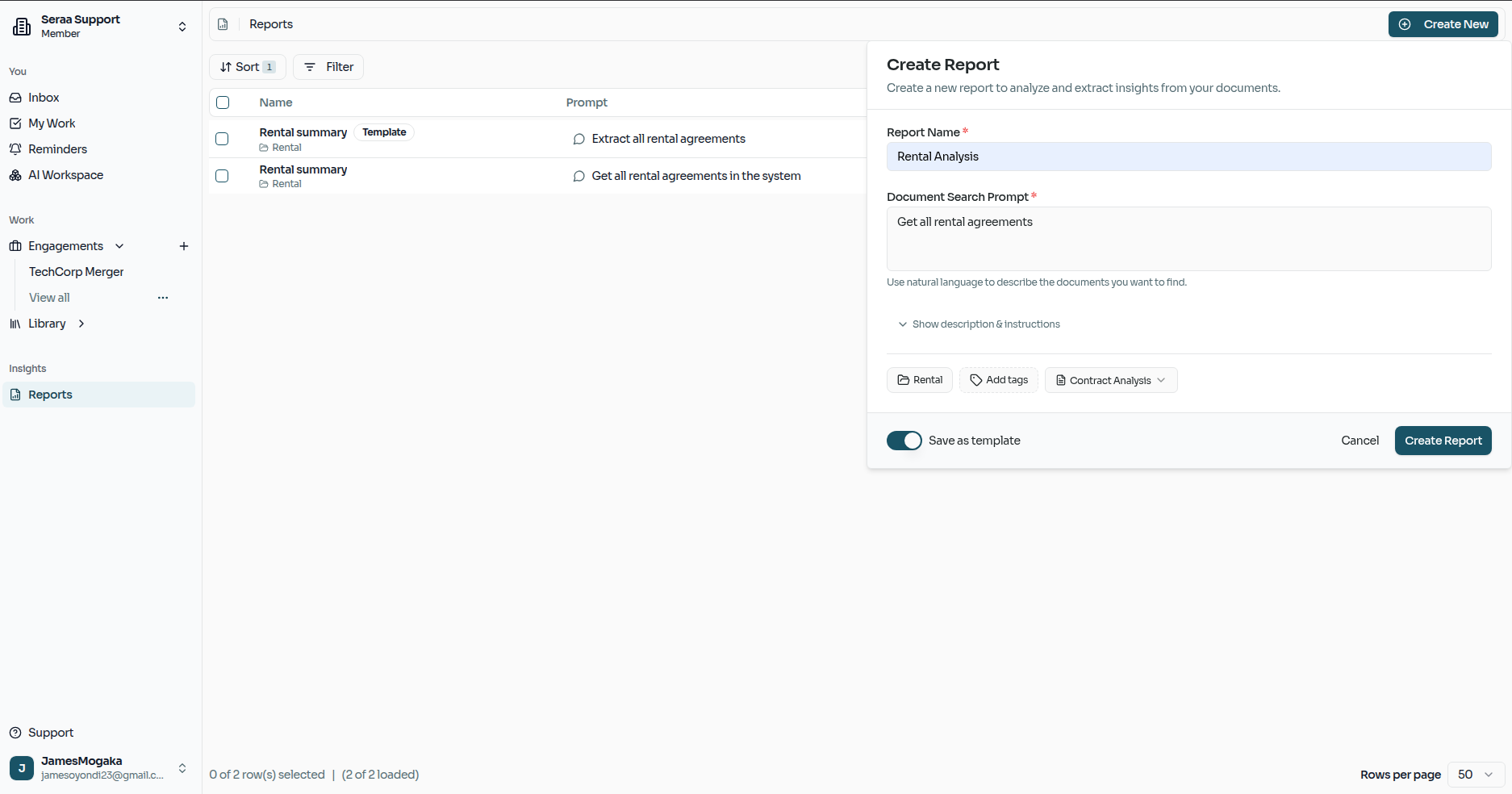
Click Create to begin setting up a new report. You'll be asked to fill in a few details:
- Name — a clear title for the report so it's easy to find later (e.g. "Q1 Supplier Contract Review").
- Prompt — a plain-language description of the documents you want Seraa to focus on. Think of this as a filter — Seraa will use it to identify which documents in your library are relevant.
- Category (optional) — assign the report to a category if you use them to organise your work.
- Report Type — choose the type of analysis that best matches your goal (see the full list below).
Report Types
Seraa supports a broad range of report formats to match the kind of work your team does:
| Report Type | Best used for |
|---|---|
| Document Review | A general review of documents for key information or issues |
| Due Diligence | Investigating a set of documents before a transaction or decision |
| Contract Analysis | Understanding the terms, obligations, and risks across contracts |
| Compliance Audit | Checking whether documents meet specific rules or standards |
| Case Summary | Summarising the key facts and documents in a litigation matter |
| Discovery Analysis | Reviewing evidence and materials produced during discovery |
| Motion Analysis | Analysing the arguments and supporting materials in legal motions |
| Deposition Summary | Condensing transcripts from witness depositions |
| Settlement Analysis | Reviewing settlement terms and related correspondence |
| Opposing Counsel Brief | Examining the opposing side's submissions and arguments |
| Literature Review | Surveying research papers and publications on a topic |
| Peer Review | Evaluating research submissions against academic standards |
| Methodology Review | Assessing the approach and methods used in a study |
| Data Analysis | Reviewing datasets and analytical documents for insights |
| Grant Progress | Tracking progress reports and deliverables for grant work |
| Publication Readiness | Checking whether a manuscript is ready for submission |
| Ethics Compliance | Reviewing work against an ethics framework or committee requirements |
| Form Comparison | Comparing filled forms against a standard template |
| Intake Summary | Summarising intake forms and initial client information |
| Custom | Any analysis that doesn't fit a standard category |
Step 2 — Adding Extractions
After creating the report, you'll arrive at the Report Info page. This is your report's home — it shows the name, prompt, and type you configured, and it's where you add your Extractions.
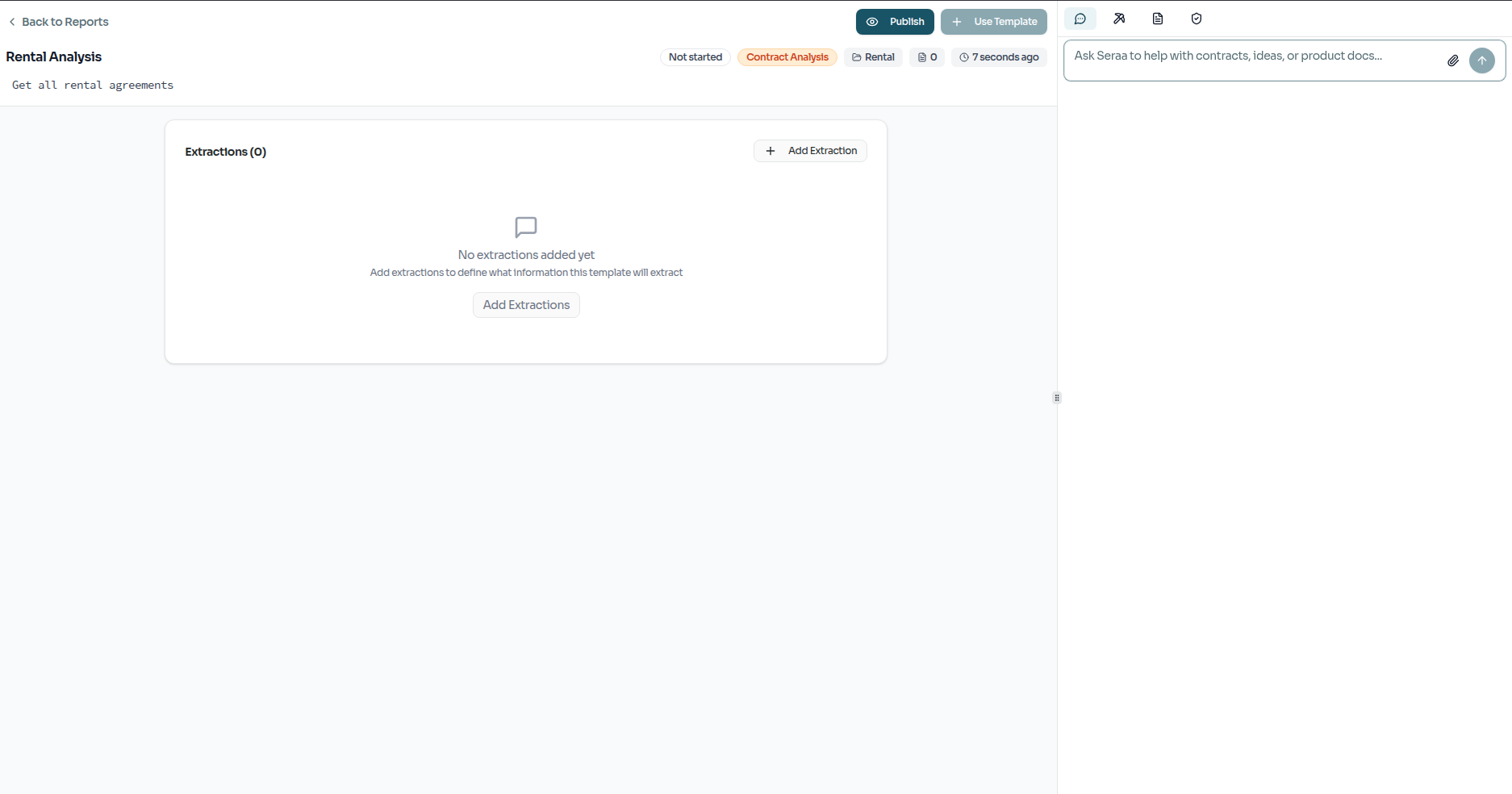
Extractions are the specific questions you want Seraa to answer. Each extraction is a single question that will be asked against every relevant document. For example:
"What is the contract end date?" "Does this document contain a limitation of liability clause?" "What is the total contract value?"
Click Add Extractions to select or create the questions for this report.
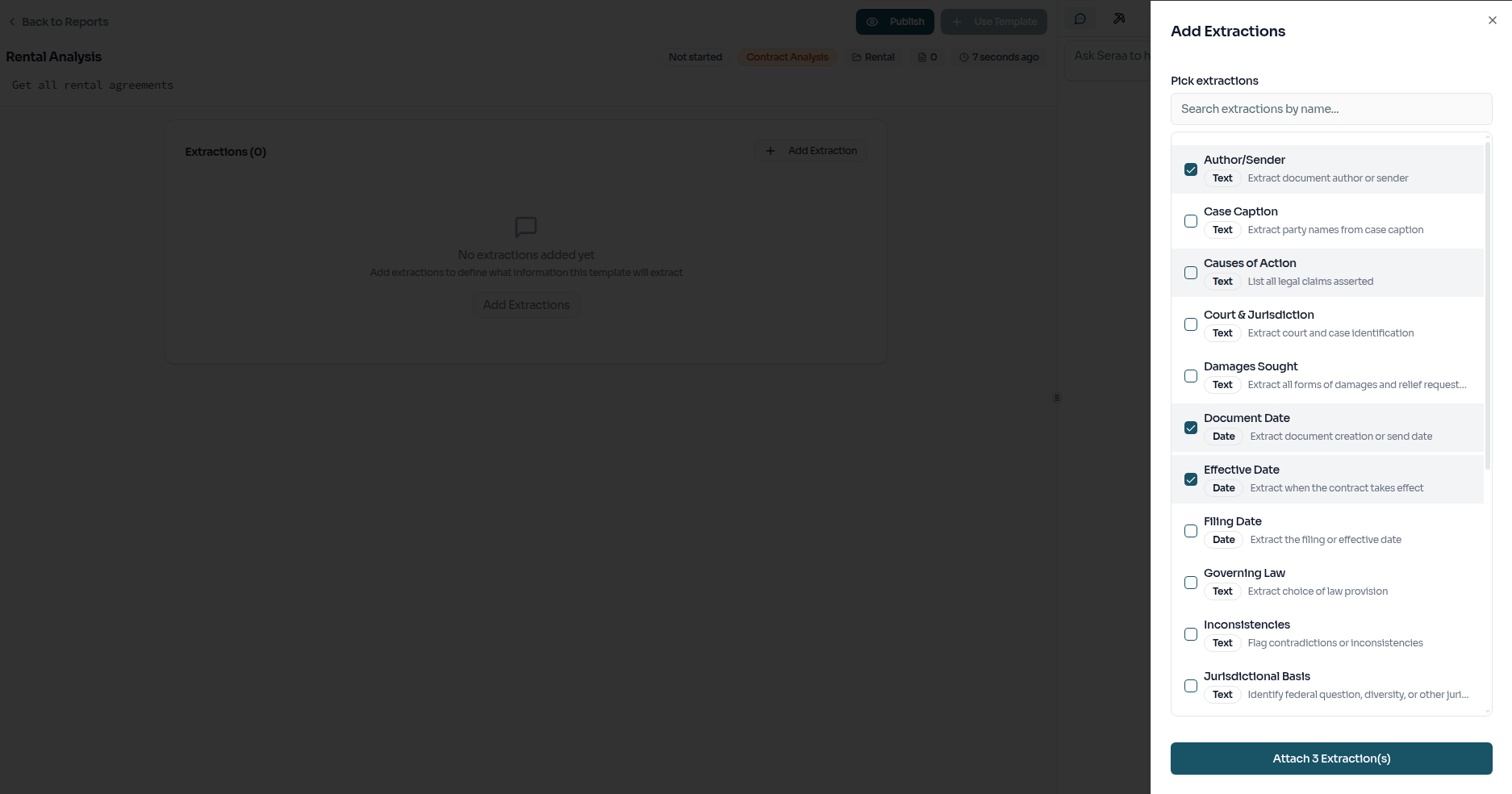
Take your time here — the quality of your questions directly shapes the quality of the results you'll get back.
Step 3 — Publishing the Report
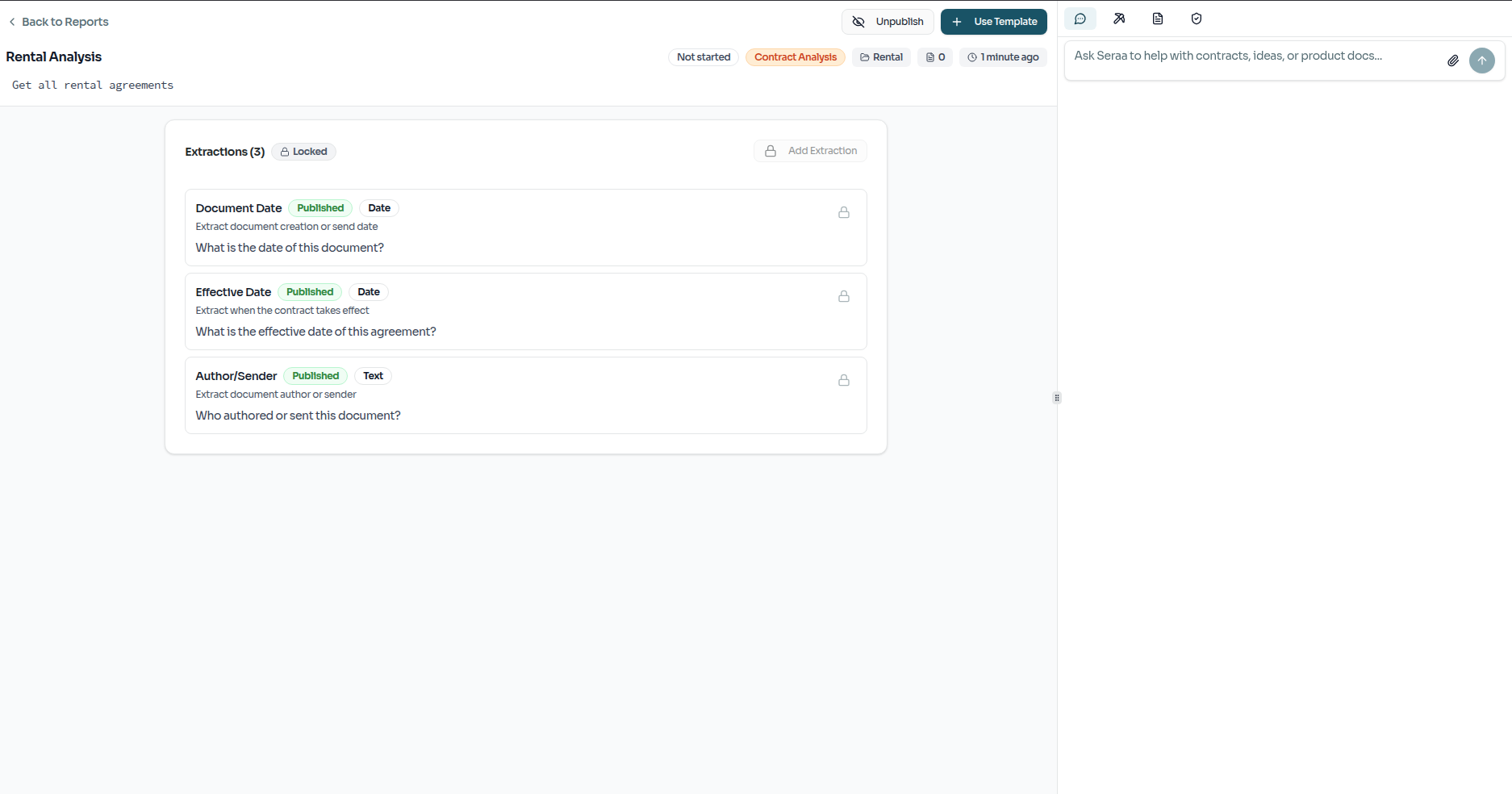
Once you're happy with your extractions, it's time to publish. Publishing is the trigger that tells Seraa to start working.
Before the report goes live, you'll see a pre-publish summary — a final chance to review everything you've configured.
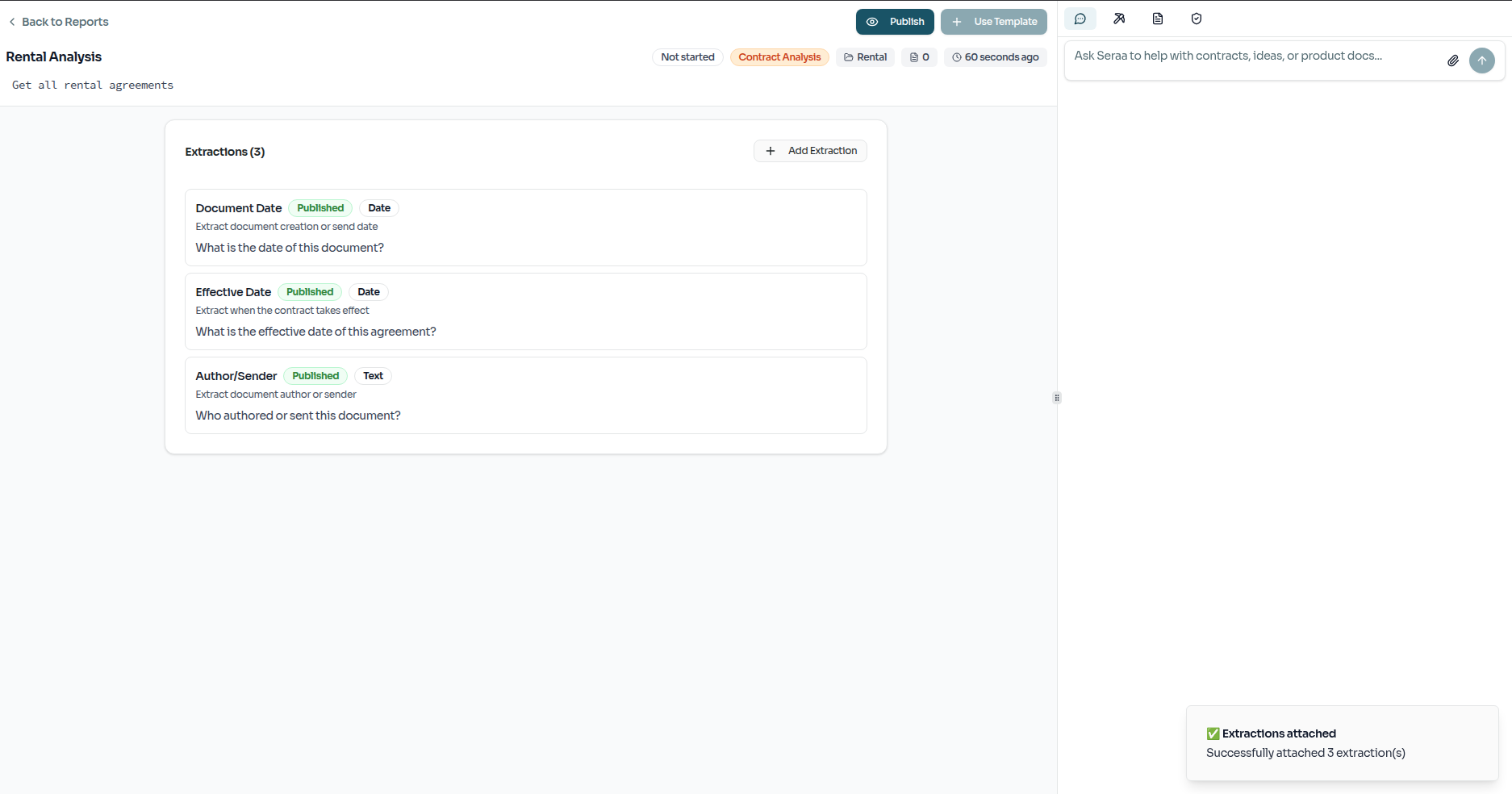
Confirm and publish. The report will switch to an active state, ready for processing.
Step 4 — Watching Seraa Work
Once published, Seraa begins processing the report automatically. You'll be able to watch it progress in real time.
The AI works in two stages:
- Finding the right documents — Seraa scans your entire document library and uses the prompt you wrote to identify which documents are relevant to this report.
- Answering your questions — For each shortlisted document, Seraa reads through it carefully and tries to answer every extraction question, noting where it found each answer.
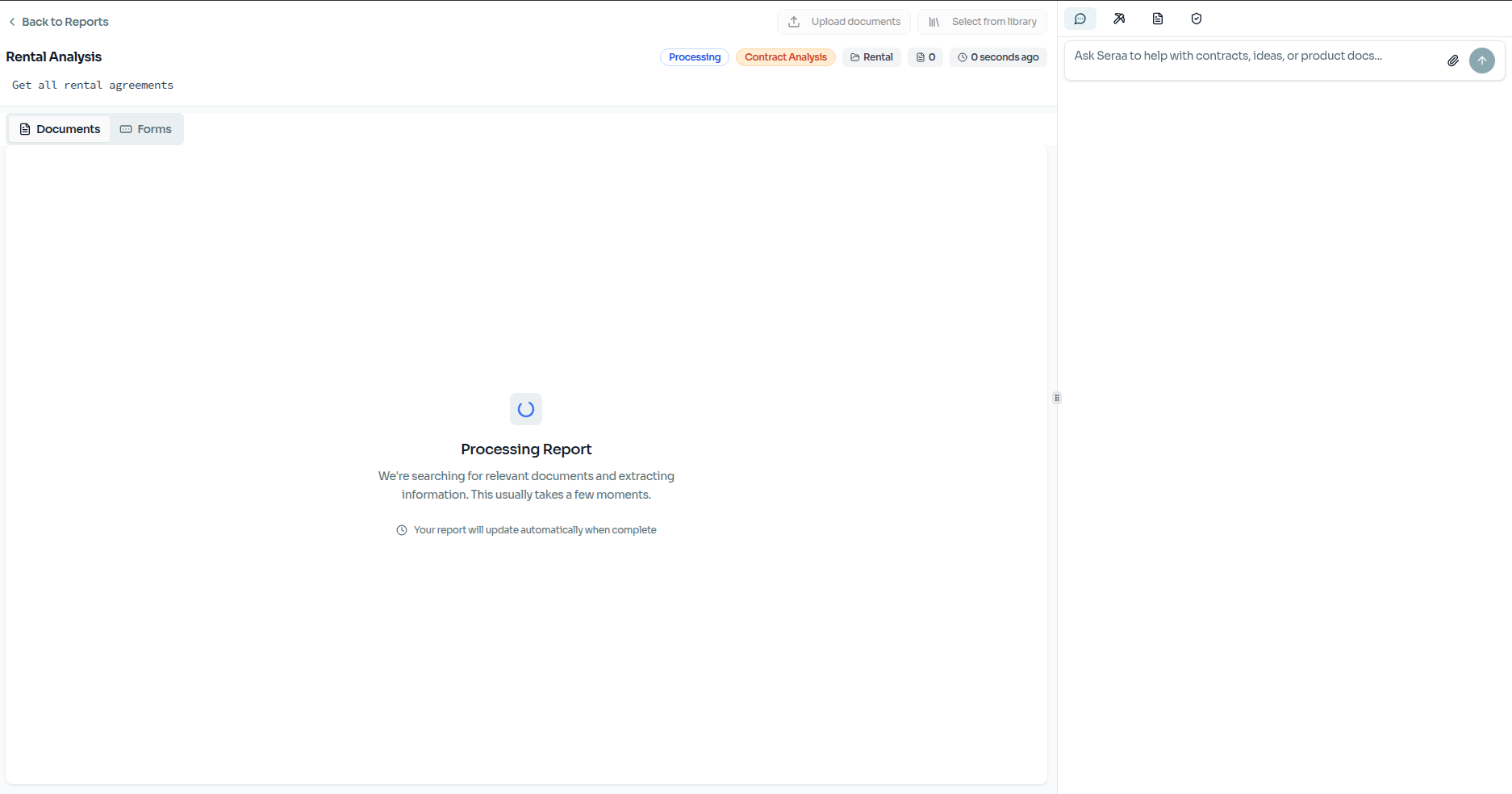
There's nothing you need to do during this stage — just let Seraa work through it.
Step 5 — Reviewing the Results
When processing is complete, all of the results appear in a structured data grid. Each row represents a document, and each column is one of your extraction questions. You can scan across the table to quickly compare answers between documents, spot gaps, or identify anything that needs a closer look.
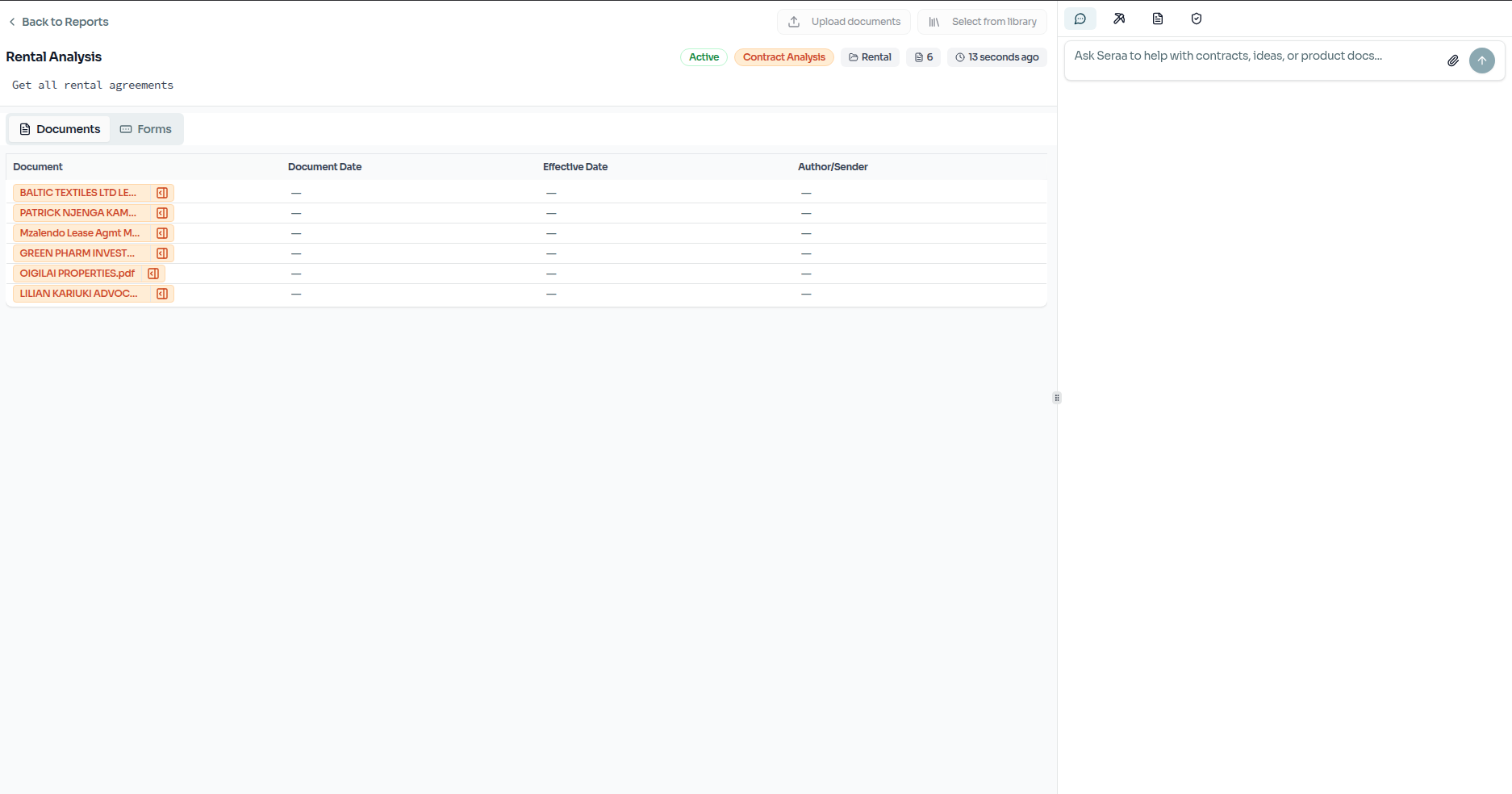
Your report is saved, so you can come back to it at any time from the Reports dashboard.